PIXEL TILE & MAP EDITOR

Draw tiles.
Place them right away.

Chipico is a free, browser-based tool for creating pixel tilesets and editing tile maps. No installation needed—draw a tile, then try it in a map straight away.

Runs in your browser · Free · In development

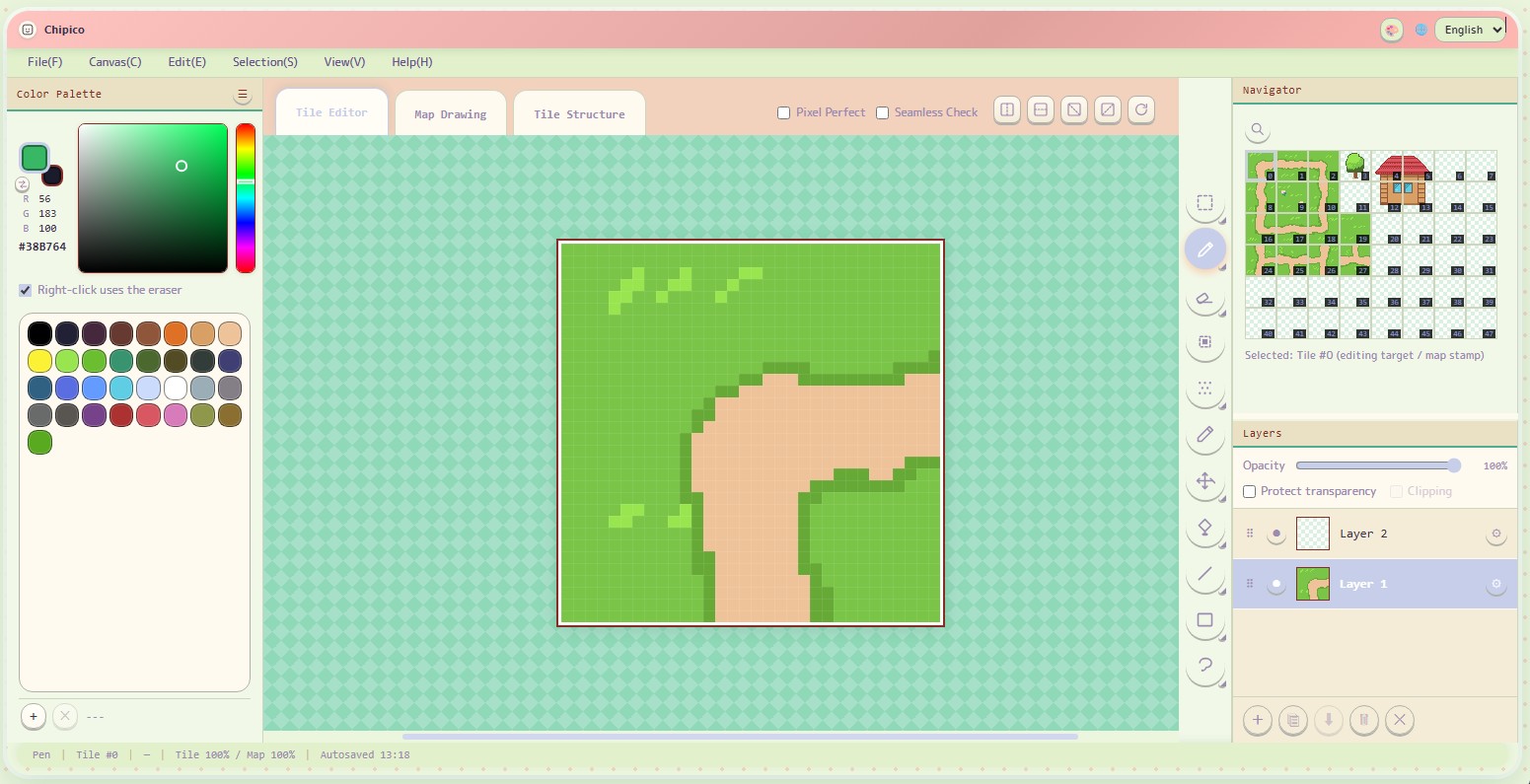
Chipico tile editing screen

FEATURE OVERVIEW

What Chipico can do

One place for creating pixel tiles, defining tile structure, and checking the result in a map.

  1. 01

    Draw pixels

    Use pens, erasers, fills, outlines, and saved color palettes to make your tileset.

  2. 02

    Organize tiles

    Register animations and groups to keep the structure of your tileset organized.

  3. 03

    Test in a map

    Place tiles in Map Edit mode to check how they look together.

ADVERTISEMENT

A future space for announcements or advertising.

WORKSPACES

Two connected workspaces

Switch between drawing tiles and placing them in a map without leaving your project.

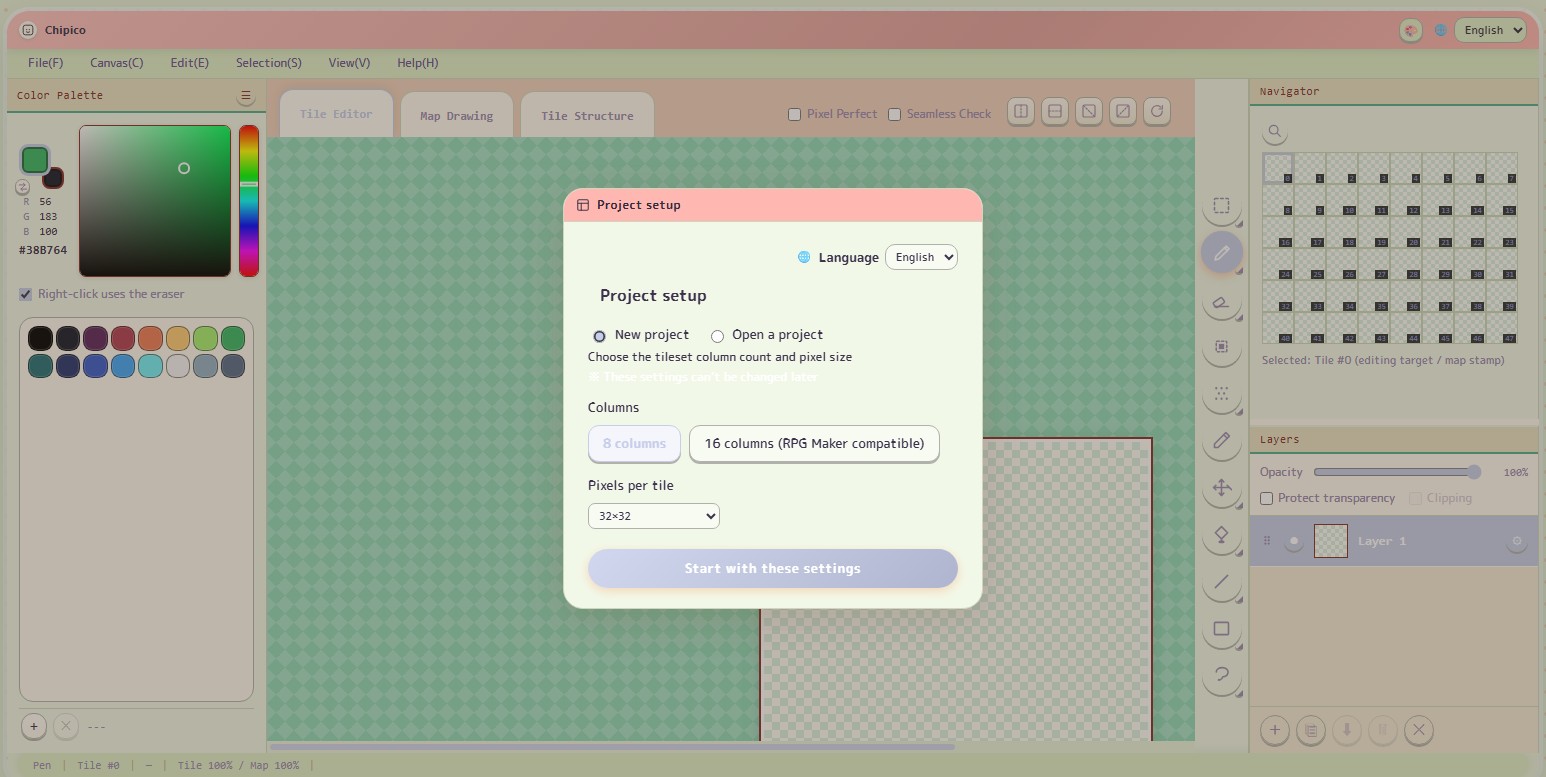
Chipico project settings screen
01 / PROJECT SETTINGS

Set up your
project basics

Choose the language and tile pixel size when creating a project. Project data can be saved and loaded as a .chip file.

02 / TILE EDITOR

A workspace for
drawing tiles

Draw with layers, manage palettes, edit selections, and replace colors while working on your tileset.

Chipico tile editor
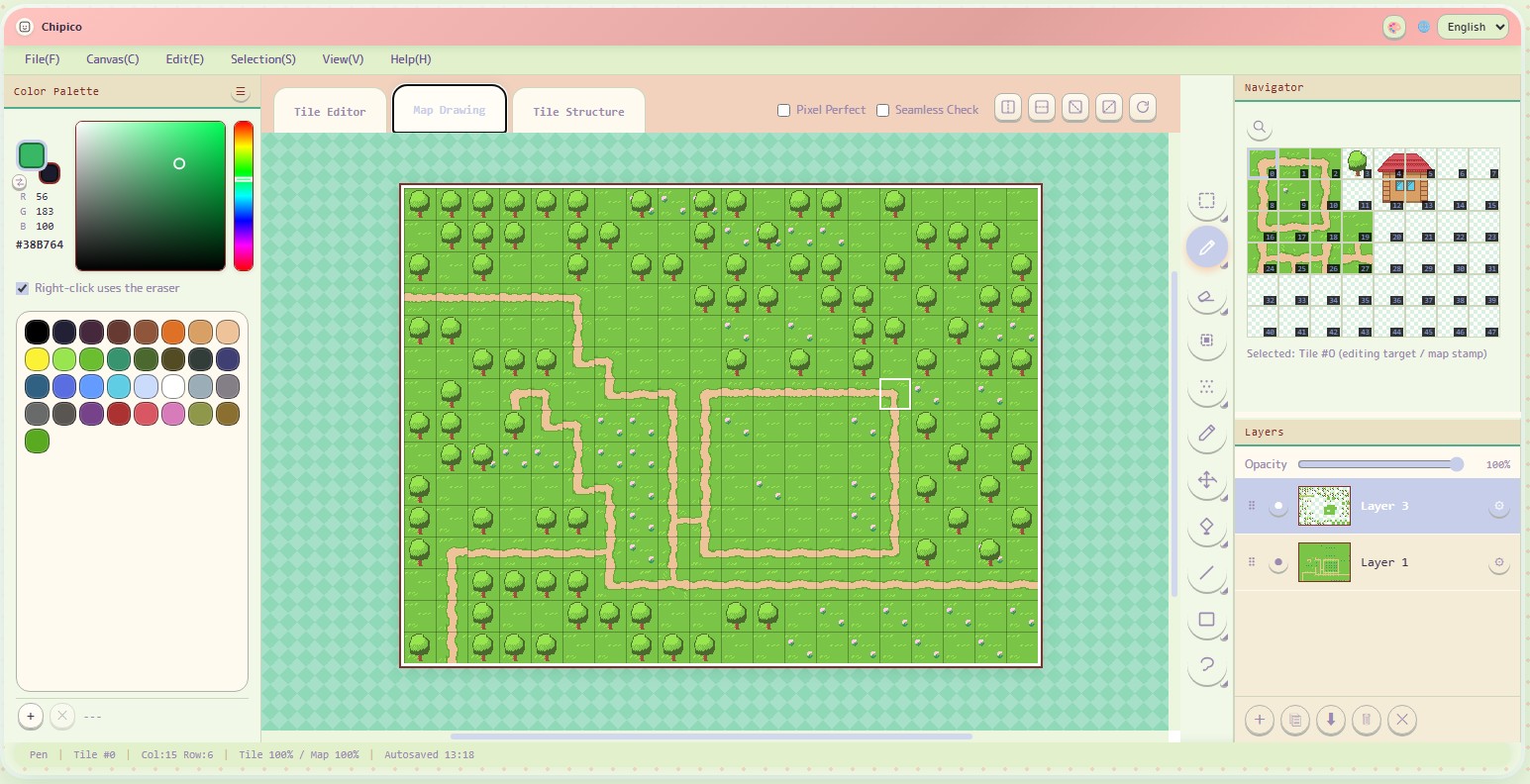
Chipico map editor
03 / MAP EDITOR

Place tiles and
check the result

Use the active tileset as a palette and place tiles on a map. Tile changes are immediately available for checking.

EXPORT FOR GODOT

Bring your tiles to Godot.

Export a PNG tileset and Godot tile data. This is the shortest path from Chipico to a Godot project.

  1. Export the Godot files from Chipico
  2. Keep the PNG and .tres file in the same folder
  3. Add them to your Godot project

Animation frame timing is exported too, and can still be adjusted in Godot.

Read the Godot setup guide →
EXPORTPNG
+ .tres

FEATURE REFERENCE

Mode reference

A closer look at the tools and data handled by each mode.

1

Tile Edit mode

The main workspace for drawing pixel tiles. Each tile can be edited using multiple layers.

Palette

Select foreground and background colors, swap them, add or remove swatches, use built-in palettes, extract a palette from an image, or save the current palette in GPL format for tools such as Aseprite.

Navigator

A compact view of the entire canvas. Use it with zoom controls to move between detailed pixel work and a full-canvas view.

Layers

Tile layers can be added, duplicated, merged, deleted, cleared, and shown or hidden. Use them to separate sketches, base colors, and decorations.

Drawing tools

Selection
Rectangle, lasso, and magic-wand selections for copying, cutting, pasting, moving, and transforming pixels.
Pen / Eraser
Basic pixel drawing and erasing tools with selectable brush sizes.
Outline
Add outlines around opaque pixels, with inside/outside placement and tile-edge connection options.
Dither brush
Draw using a dither pattern with adjustable size and density.
Eyedropper
Pick a color from the canvas.
Move / Pan
Move a selection or move the canvas view.
Fill / Replace Color
Fill a connected area or replace one clicked color across the active layer.
Lines and shapes
Draw lines, curves, rectangles, ellipses, lasso shapes, and polygons with outlines or fills.
2

Map Edit mode

Place tiles from the active tileset onto a map. Changes made in Tile Edit mode are available in the placement palette immediately.

Navigator / stamp palette

In Map Edit mode, the right-side navigator area also works as a stamp palette. Select a tile cell there, then place it on the map while still keeping an overview of the map.

Layers

Maps support up to five layers. Layers can be added, duplicated, merged, deleted, cleared, and shown or hidden for ground, walls, decorations, and foreground elements.

3

Tile Structure mode

A settings workspace for defining and organizing animations and groups inside a tileset, rather than drawing pixels.

Purpose and editing

Animations define a sequence of tile frames. Groups help organize tiles inside Chipico. Create an animation or group, then rename, duplicate, or delete it from the list. Animation frames can be added, reordered, removed, and previewed.

Animated image export

Save the selected animation as an animated image using its configured frame timing and loop setting. Choose WebP (recommended), GIF, or APNG and set the export scale—useful for quick motion previews and showcase images.

Groups are for organizing tiles inside Chipico. They are not included in Godot export data.

FAQ

About Chipico

Common questions about this pixel tileset editor.

Is Chipico free to use?

Yes. Chipico is a free browser-based tileset and tile map editor.

Do I need to install anything?

No. Open Chipico in a supported browser and start working.

Can I export a Godot tileset?

Yes. Chipico exports a PNG tileset and a Godot .tres file. Keep them in the same folder.

Can I make animated tiles?

Set up an animation in Tile Structure mode, preview it, and save it as WebP, GIF, or APNG.

Are groups included in Godot export?

No. Groups are an organizational feature inside Chipico and are not included in Godot export data.

READY?

Draw your first
tile today.

Open Chipico ↗