WORKSPACE REFERENCE

Draw, place, animate.
Three focused workspaces.

Chipico separates drawing tiles, testing their placement, and defining animation or organization into three connected modes.

TILE EDITMAP
+ STRUCTURE
YOUR TILESET

01 / TILE EDIT

Tile Edit mode

Drawing

Draw tiles with the pen, eraser, fill, replace color, line, curve, rectangle, ellipse, polygon, dither brush, and outline tools.

Selection

Rectangle, lasso, and magic-wand selections support copying, cutting, pasting, moving, and transforming pixels.

Palette

Use swatches, color swap, presets, image color extraction, and GPL palette saving.

Layers

Add, duplicate, merge, delete, clear, and show or hide layers to separate sketches, base art, and decorations.
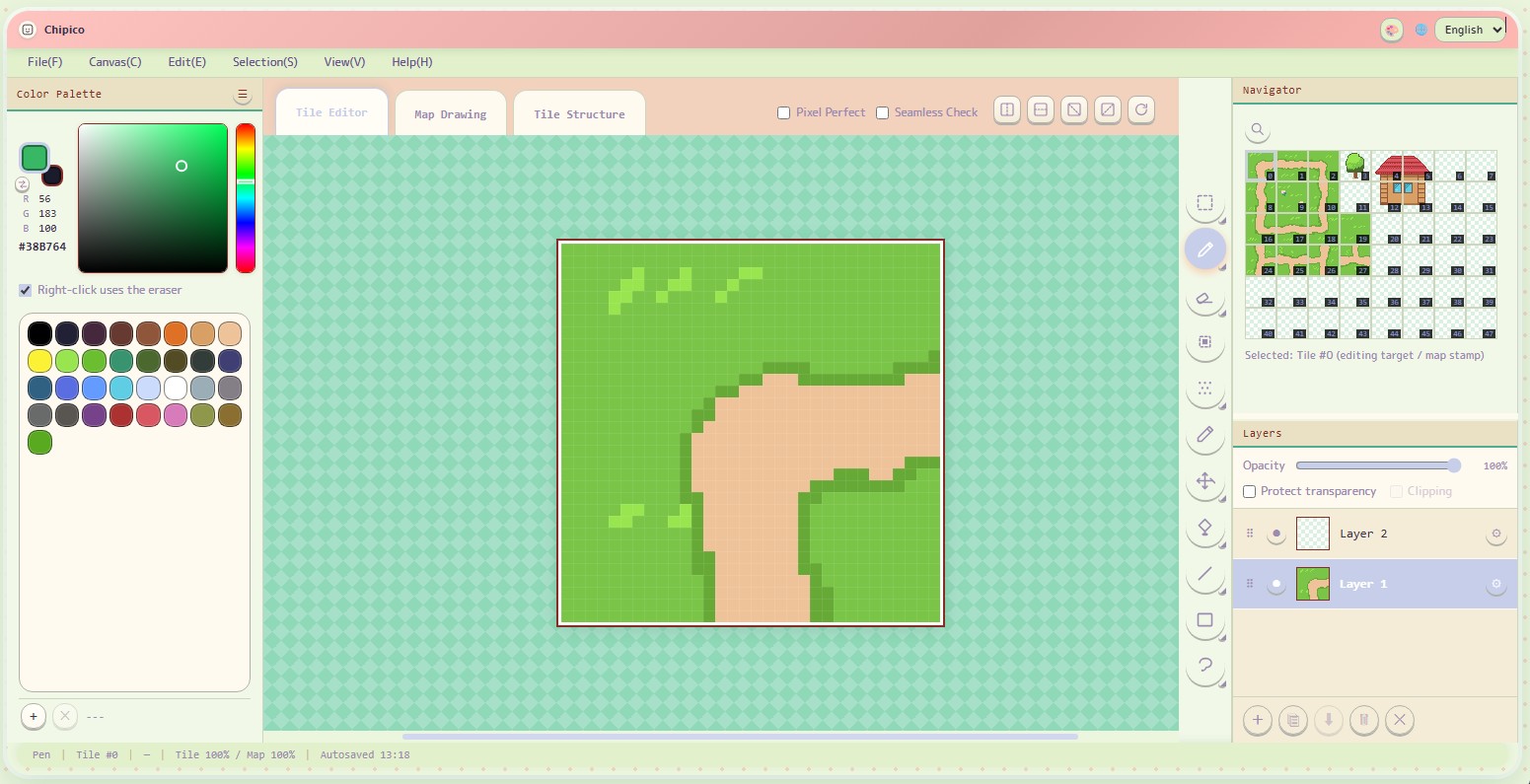
Chipico Tile Edit mode
Use zoom for pixel detail and the navigator for a full-canvas view.

02 / MAP EDIT

Map Edit mode

Stamp palette

Select a tile in the navigator area, then place it on the map.

5

Up to five layers

Separate ground, walls, decorations, and foreground elements.

Immediate updates

Changes made while drawing become available in the placement palette.

Check seams

Test repeated tiles and overlapping layers in a real map context.

03 / TILE STRUCTURE

Tile Structure mode

Animation

Register tile frames, set their order and duration, then preview movement.

Groups

Groups organize tiles inside Chipico. In Godot export, their cells are handled as separate normal tiles.

Animated image export

Save the selected animation as WebP (recommended), GIF, or APNG with scale, timing, and loop settings.

Godot export

Godot animation needs same-size frames arranged continuously from left to right. Read the requirements →


Looping 32-pixel water animation sample
A four-frame 32-pixel water sample with gently moving highlights.
Open Chipico ↗Back to the guide →